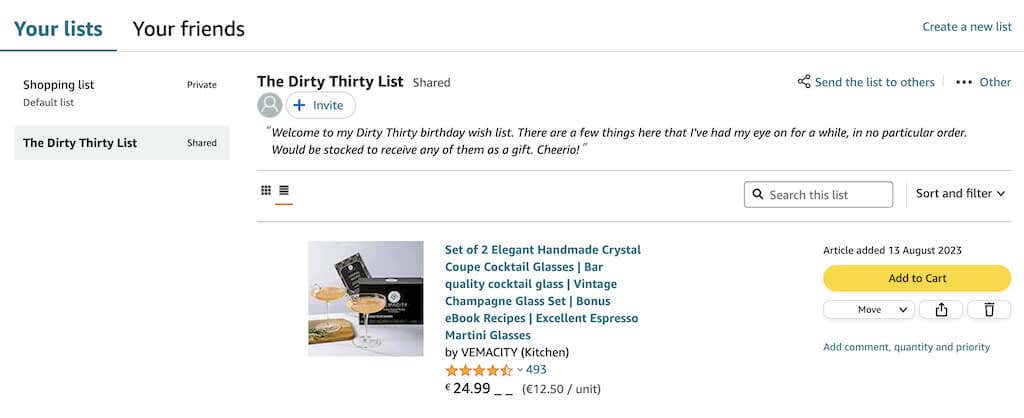
You can also craft a new list directly from a product page while browsing. Check the Add to List dropdown on the right side, pick an existing list, or create a new one. You can also instruct your Alexa device to whip up a new list for you.
The beauty of Wish Lists lies in their privacy – they’re exclusively yours until you decide to share. When you’re ready, open the wish list and hit the Invite button at the top of your list. You can then copy the link or opt for sharing through email or text message option to effortlessly share your curated list with friends and family. It keeps your preferences organized and ensures you don’t end up with duplicate gifts.
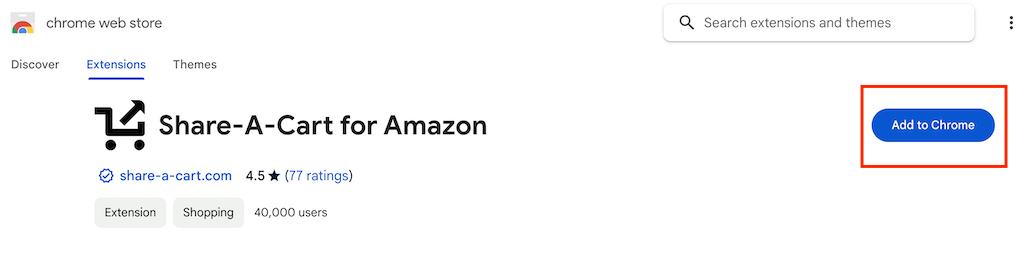
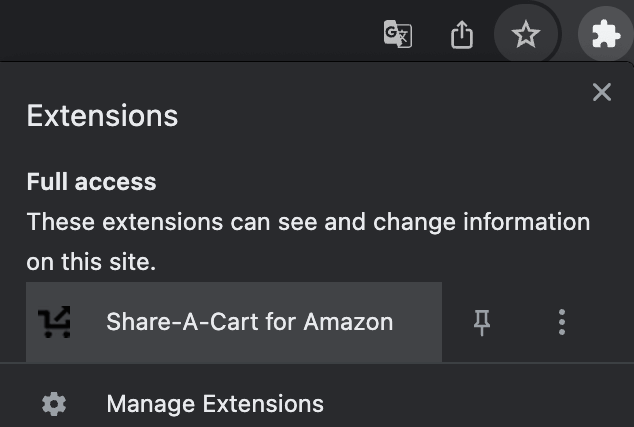
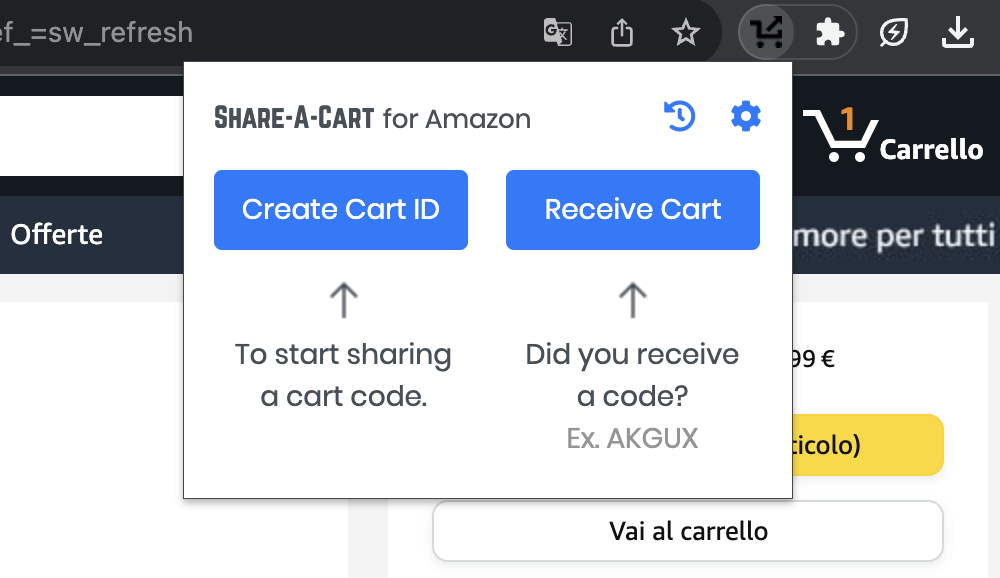
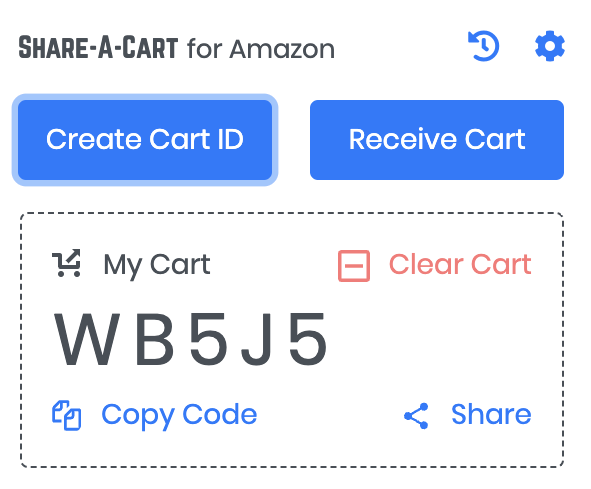
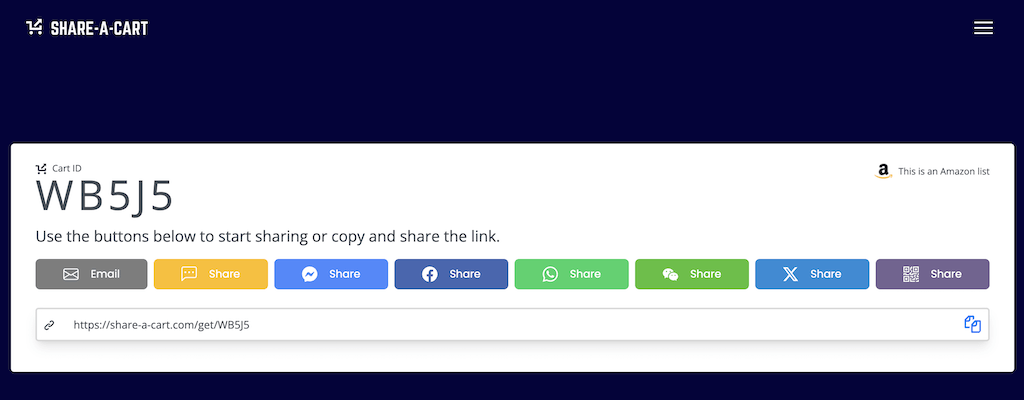
Here’s a walkthrough for using the Google Chrome web browser extension, but you can follow the same steps for other browsers as well.
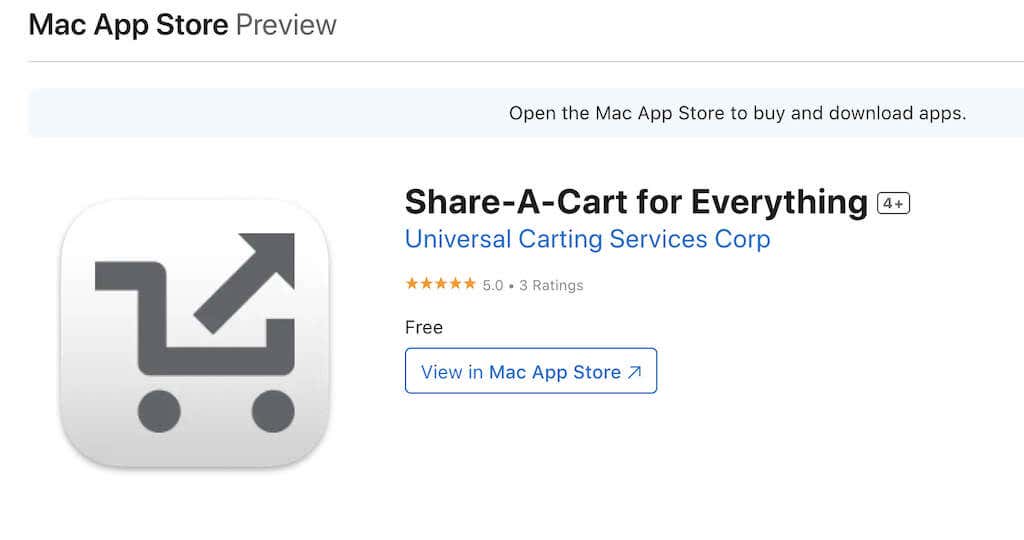
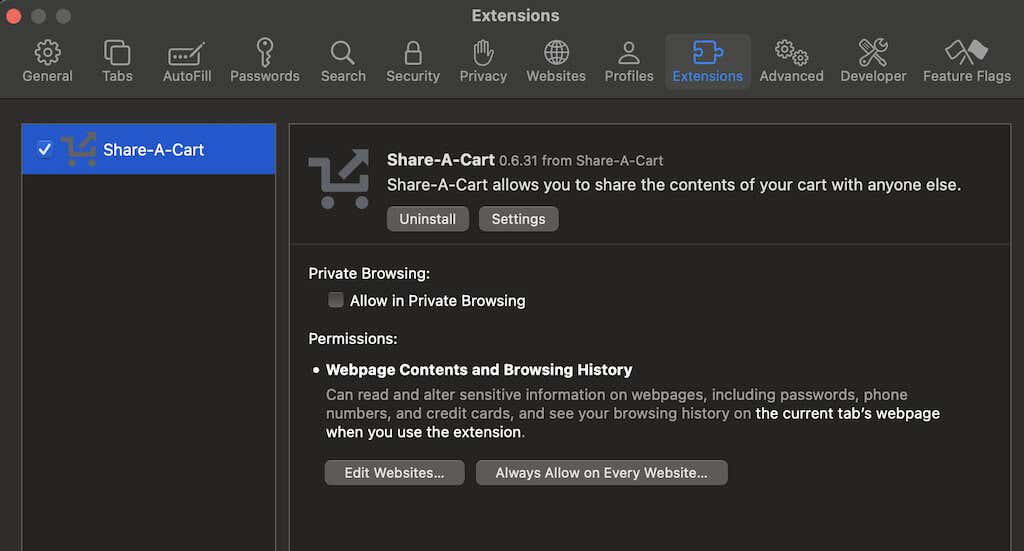
Share-A-Cart is also available in the form of an application that you can download and use on your iPhone, iPad, and Mac.
Here’s how to use the Share-A-Cart for Everything app on your device.
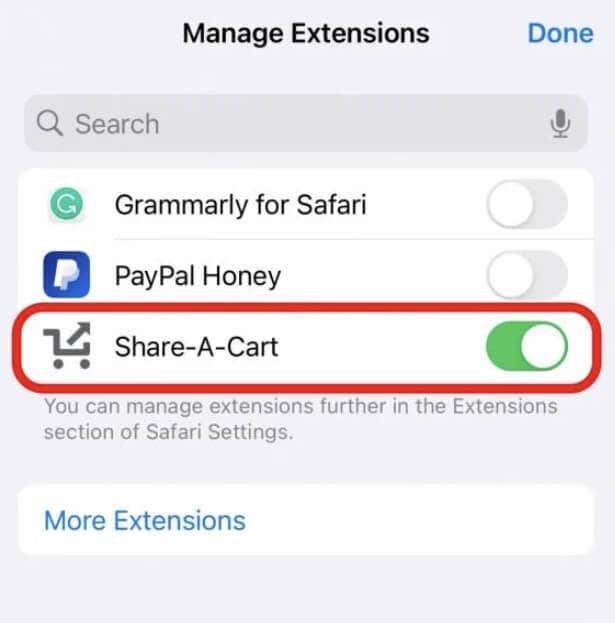
You’ll now find the Share-A-Cart option in the menu when you click on the puzzle icon in the Safari address bar.
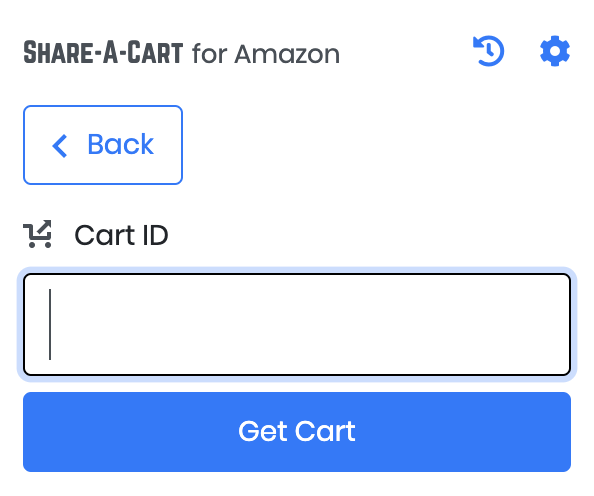
Now that you have enabled the Share-A-Cart extension on your device, you can follow steps 3 through 8 from the previous section to create your Cart ID and share it with another person.
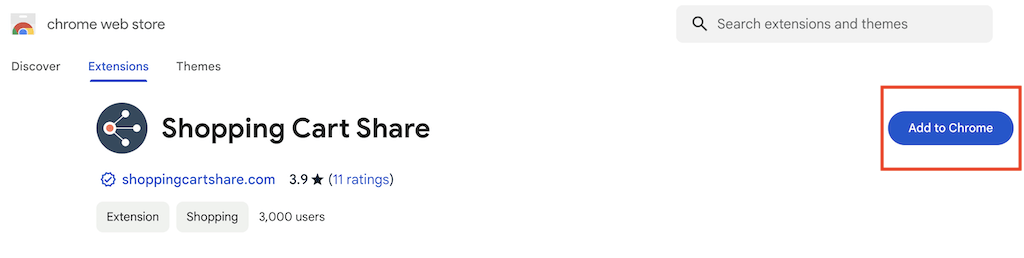
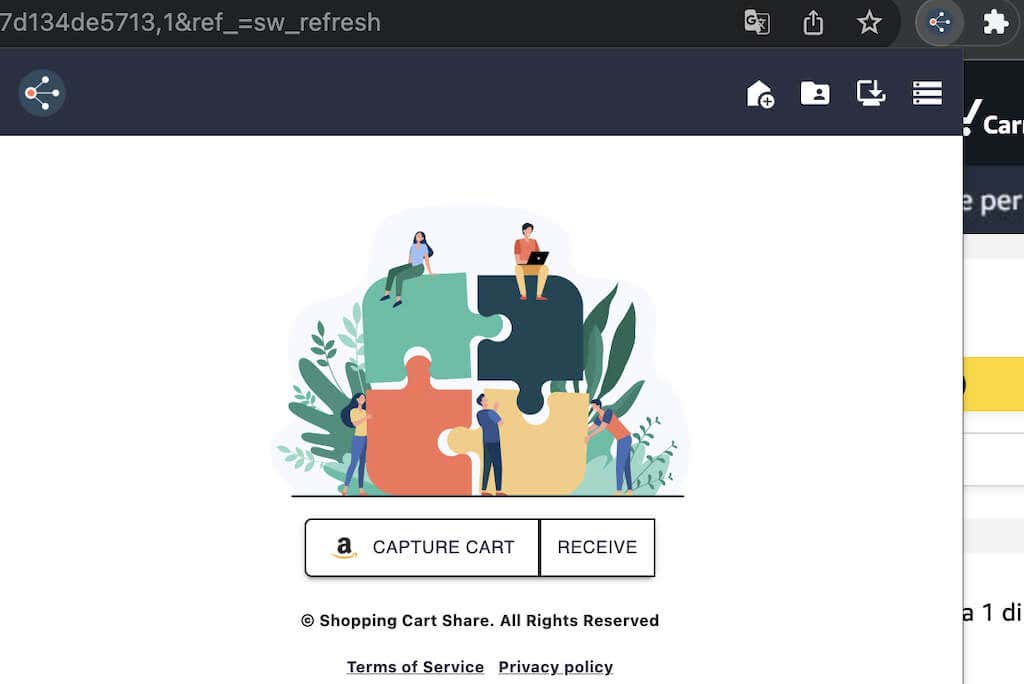
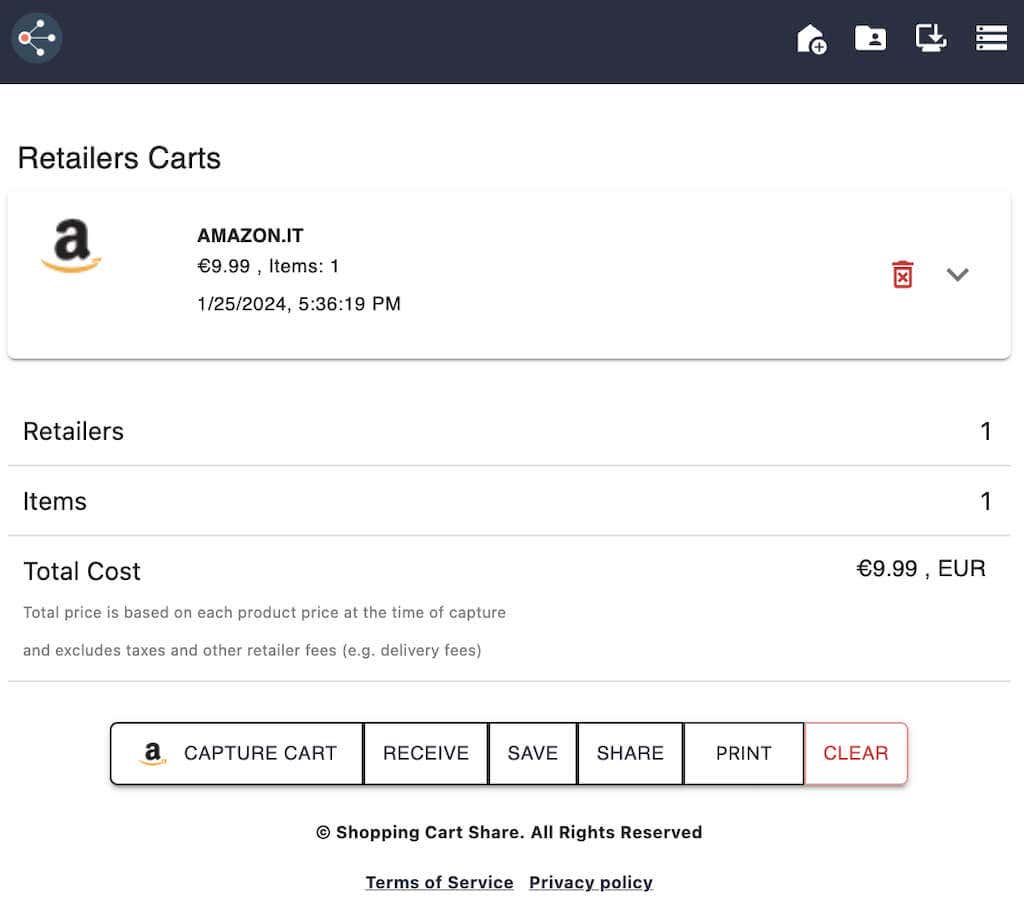
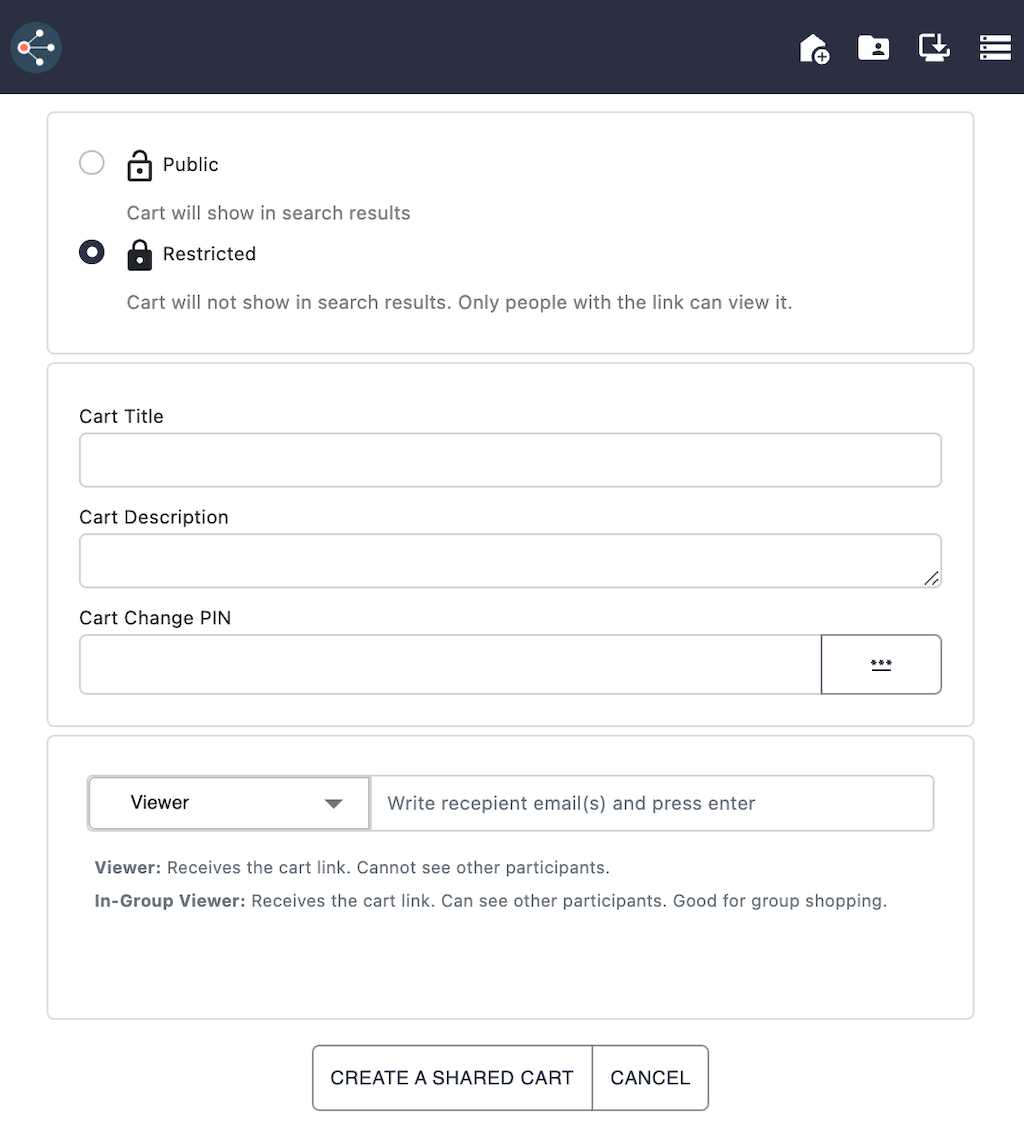
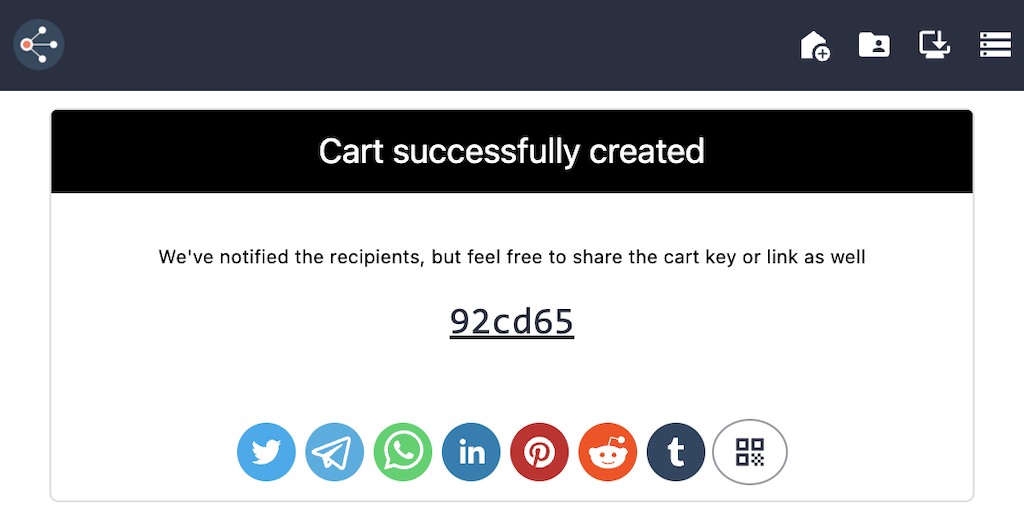
Here’s how to use the Shopping Cart Share browser extension in Chrome.